

Felion Terminal
Every server, one calm window.
Your shells, SSH sessions, files, an editor, Git, tunnels and serial consoles side by side. Fast, focused, and made for people who live on servers.
Runs on
- Windows
- macOS
- Linux
- for shells, SSH, files, Git, tunnels and serial
- 1 window
- Windows, macOS and Linux
- 3 systems
- rendering, true colour, emoji at the right width
- GPU
- passwords written in plain text
- 0
Download
Get Felion Terminal.
The newest version for your system, straight from our releases. The links always point to the latest one.
macOS
Signed and notarized by Apple. Open the DMG and drag Felion Terminal into Applications.
Windows
Not yet signed with a code-signing certificate, so SmartScreen asks the first time: choose More info, then Run anyway.
Linux
For 64-bit (x64) systems. Make the AppImage executable (chmod +x) and run it, or install the .deb with apt.
Version 0.7.0SHA-256 checksumsAll releases
A closer look
Built around how you work.
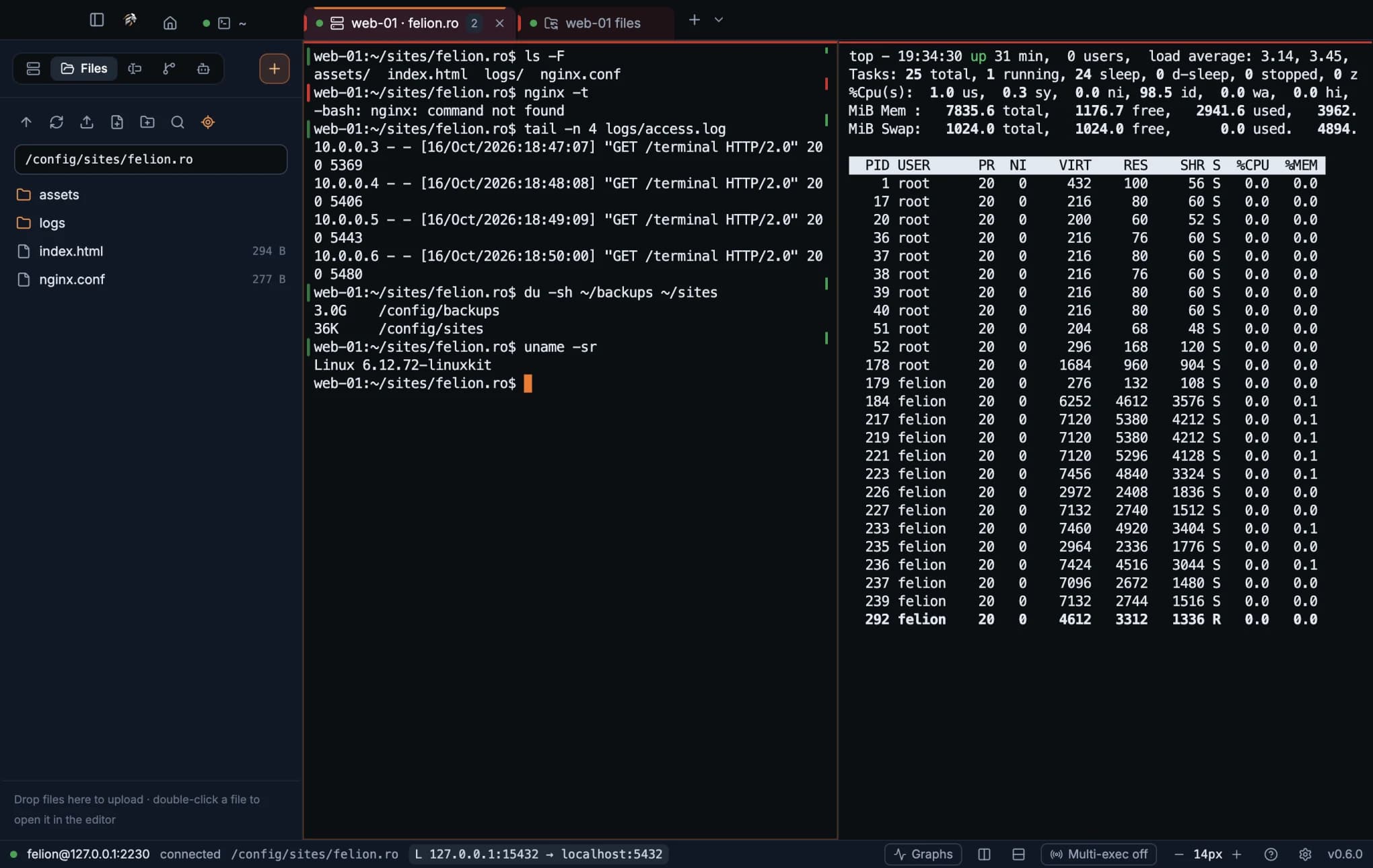
Every screen below is the real app.
Panes, files and the shell together.
Split a tab as often as you like. The Files panel follows cd, so the files you see are the ones you're working on. Drag to upload; double-click to open a file in the editor.
Video
Watch it work, start to finish.
Sessions, split panes, files, the built-in editor, the command palette and the lion clock, in under two minutes.
What it does
Everything for the server. Nothing in the way.
Terminals
- Tabs and split panes; double-click a tab to rename it
- A quick terminal that drops down from any app on a hotkey
- Your local shells found for you, WSL and Git Bash included
- Open a folder straight into a terminal
- Search the scrollback, with regex
- Tab groups you can name, colour and fold; drag tabs to reorder them
SSH
- Password, keys, agent and two-factor prompts
- Chained jump hosts
- Host keys checked; a changed key stops the connection
- X11 forwarding: a server's windows on your screen
- Send and receive files with rz and sz, right in the terminal
Files and the editor
- SFTP, FTP and FTPS, with a two-pane file manager
- Drag files and folders across; a transfer queue with cancel
- A built-in code editor that saves back to the server
- A file panel beside the terminal that follows cd, with New file, Duplicate, Filter and Copy relative path
- Pictures to look at, and a live preview of SVG files
Run and debug
- A terminal panel under every tab, for builds, tests and git
- Run package.json scripts and Makefile targets with one click
- Problems from your project's own TypeScript, ESLint, Ruff and go vet
- Debug Python, JavaScript and TypeScript: breakpoints, call stack, variables
Source Control
- A Git panel that follows the terminal, locally and over SSH
- Stage, compare and commit; switch branches; fetch, pull and push
- A history graph, and who last changed each line in the editor, with the full commit a click away
- Pull requests, GitHub Actions runs with their logs, and releases
- Staged changes checked for secrets before a commit
Agents
- Your Claude Code and Codex conversations, grouped by project
- Chat with your own installed Claude Code in a pane, edits shown as diffs
- Resume any conversation in a terminal
- Your Claude plan's usage at a glance, in 5-hour and 7-day bars
Tunnels, serial and Telnet
- Local, remote and SOCKS5 forwarding per session
- Serial consoles that list the ports actually plugged in
- Telnet for switches and routers without SSH
Server graphs
- CPU, memory, disk and network of a Linux server, live
- Recorded in the background while you're connected, kept up to 90 days
- Read over your SSH connection; nothing to install on the server
Work faster
- A command palette for everything
- Snippets, and multi-exec to type into every pane
- Green and red marks on every command, with shortcuts to jump between them
- A notification when a long command finishes
- Explain a command or an error in plain words
- The right install command when a tool is missing
Your workspace
- Tabs and splits reopen and reconnect the next time you start the app
- Export sessions and snippets as one encrypted file
- Session logs with a timestamp on every line
Every feature, setting and shortcut, explained step by step.Read the manual →
The lion
Calm while you wait.
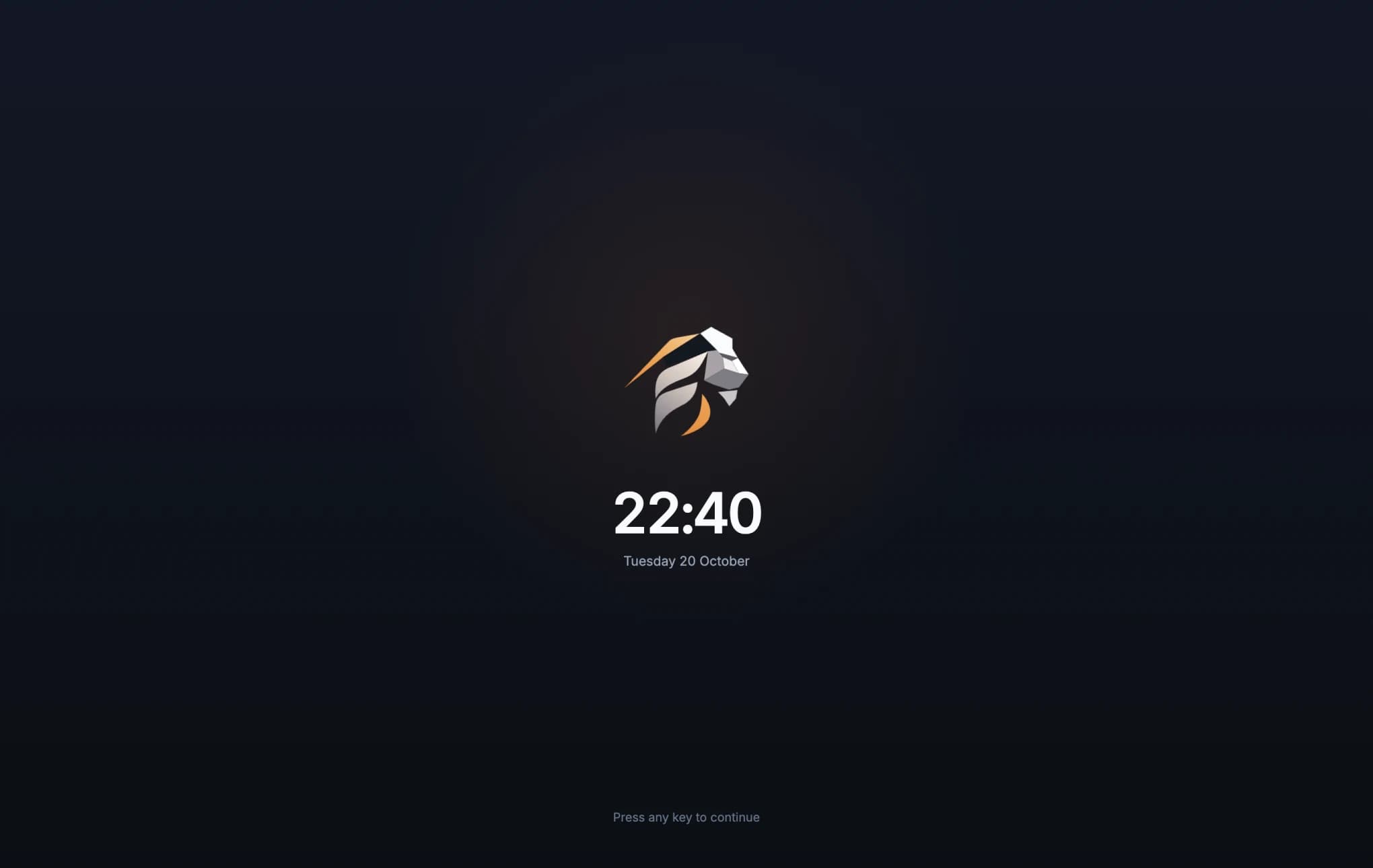
The Felion lion assembles while the app starts and while a pane reaches its server. Step away and the window turns into a quiet clock, with your sessions still running underneath.
Security and privacy
Your keys stay yours.
Built for people who are careful with access.
Keychain, not plain text
Passwords and key passphrases are encrypted with your system's keychain. With no keychain, they're asked for each time.
Host keys checked
Trusted on first use after you see the fingerprint. A key that changes later stops the connection with a warning.
Your clipboard stays yours
Remote programs may copy into it but can never read it. Multi-line pastes show you the lines first.
Forwarding off by default
Your SSH agent and X11 reach a server only when you turn them on for that session. X11 programs get a stand-in cookie; the real one stays here.
FTPS checked before your password
The server's certificate is verified before you log in. A self-signed one is shown with its fingerprint and pinned once you trust it.
Imports treated as untrusted
An imported file can't open tunnels into your network or point at network paths on this computer.
Secrets caught before a commit
The Git panel checks staged changes for keys, tokens, passwords and credential files, and shows what it finds masked before anything is committed.
Your GitHub token stays here
Encrypted with your system's keychain and used only to talk to GitHub. It's never sent to a server you're logged in to.
Your Claude sign-in stays yours
Felion Terminal never reads, stores or passes on your Claude sign-in. The Agents chat runs your own installed Claude Code, signed in as you; account, plan and usage come from Claude Code itself.
Project code runs when you say so
Problems, tasks and the debugger run your project's own code, so nothing runs when a folder opens. Problems asks before it first checks a project, a task only types the command you picked into a visible shell, and the debugger starts only from its button or F5.
A sandboxed interface
The window has no direct access to the system; everything goes through a small, typed bridge.
Keyboard first
Your hands stay on the keys.
| Action | macOS | Windows and Linux |
|---|---|---|
| Command palette | ⇧⌘P | Ctrl+Shift+P |
| New terminal | ⌘T | Ctrl+Shift+T |
| Split right / down | ⌘D / ⇧⌘D | Ctrl+Shift+D / E |
| Find in terminal | ⌘F | Ctrl+Shift+F |
| Previous / next command | ⌘↑ / ⌘↓ | Ctrl+Shift+↑ / ↓ |
| Multi-exec on / off | ⇧⌘M | Ctrl+Shift+M |
| Save in the editor | ⌘S | Ctrl+S |
| Commit from the Git panel | ⌘↩ | Ctrl+Enter |
| Show / hide the terminal panel | ⌘J | Ctrl+Shift+J |
| Debug the file / continue | F5 | F5 |
Questions
Frequently asked.
Which systems does it run on?
Windows, macOS and Linux. On Windows it finds PowerShell, Command Prompt, Git Bash and WSL; on macOS and Linux, your login shell and everything in /etc/shells.
How do I get it?
Download it above for your system; the links always point to the newest version. Once it's installed, the app tells you when a new one is out.
Where are my passwords stored?
Encrypted by your operating system's keychain: DPAPI on Windows, Keychain on macOS, libsecret on Linux. They're never written in plain text.
Can I bring my servers with me?
Yes. The welcome tour imports the hosts from your SSH config, and sessions and snippets can be exported as one encrypted file and imported on another computer.
Can I edit files on the server?
Yes. Double-click a file in the file panel or the file manager and it opens in the built-in editor; saving sends it back over the same connection. Prefer your own editor? Every save from it is uploaded too.
Does it work with Git and GitHub?
Yes. The Git panel shows the repository of the terminal you're in, on your computer or on a server over SSH: changes, commits, branches and a history graph. Connect GitHub to see pull requests, Actions runs with their logs, and releases. Git needs to be installed, on the server too.
Does it work with Claude Code and Codex?
Yes. The Agents tab lists your Claude Code and Codex conversations by project. Resume any of them in a terminal, or chat with your own installed Claude Code in a pane. Felion Terminal never reads your Claude sign-in. The chat was tested on macOS; the Windows and Linux builds include it untested.
Does it work with network gear?
Serial consoles and Telnet are built in, next to SSH, for switches, routers and devices that don't speak SSH.
Feedback
Questions, ideas or a bug?
Tell us what works, what doesn't and what you'd like next. Your message goes straight to the people who build Felion Terminal, and we read every one.